How to Import Campaigns from Keitaro into Binom: A Step-by-Step Guide
1. Moving Campaigns Without Starting from Scratch
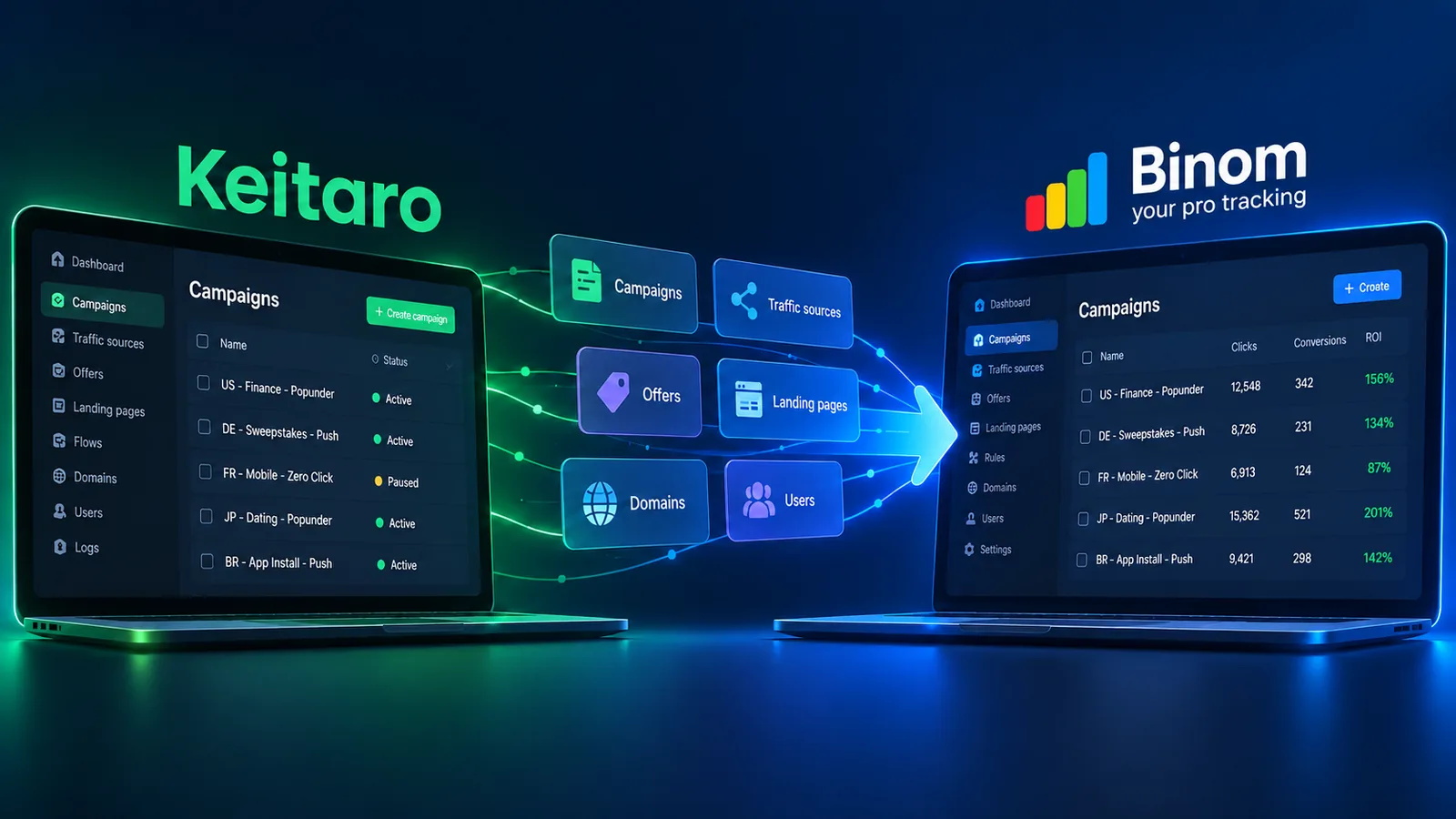
Switching tracking platforms can be challenging when you've already spent time configuring campaigns, traffic sources, landing pages, and offers. Rebuilding those elements manually takes time and increases the risk of configuration errors that could disrupt your tracking.
For media buyers moving from Keitaro to Binom, there's a more straightforward option.
Binom provides a built-in Keitaro import tool that transfers existing campaign configurations into its tracking environment. Although certain settings require manual adjustments, the importer reduces the amount of work involved.
This guide covers how to prepare for the migration, import your campaigns, understand the limitations, and verify your setup before switching live traffic.
2. Before You Begin: Preparing for the Migration
Before importing your campaigns, make sure both platforms are ready. Binom's importer requires access to Keitaro's Admin API, so confirm that your subscription includes this feature.
You'll need three things:
Keitaro API access: Find your API key under Account → API keys. You'll also need your Keitaro admin login URL.
A clean Binom installation: The import feature only works on a tracker without existing configurations. If you're already using Binom, you'll need a clean installation for the migration.
A record of your existing setup: Save campaign URLs, traffic-source parameters, postback settings, and relevant performance reports for reference.
Keep your existing campaigns running until you've tested the imported configurations. Historical performance statistics aren't included among the objects covered by Binom's documented import process, so retain your Keitaro reporting data.
3. Step-by-Step: Importing Your Keitaro Campaigns into Binom
Once you've prepared your credentials and clean Binom installation, you're ready to begin.
Step 1: Open the import tool
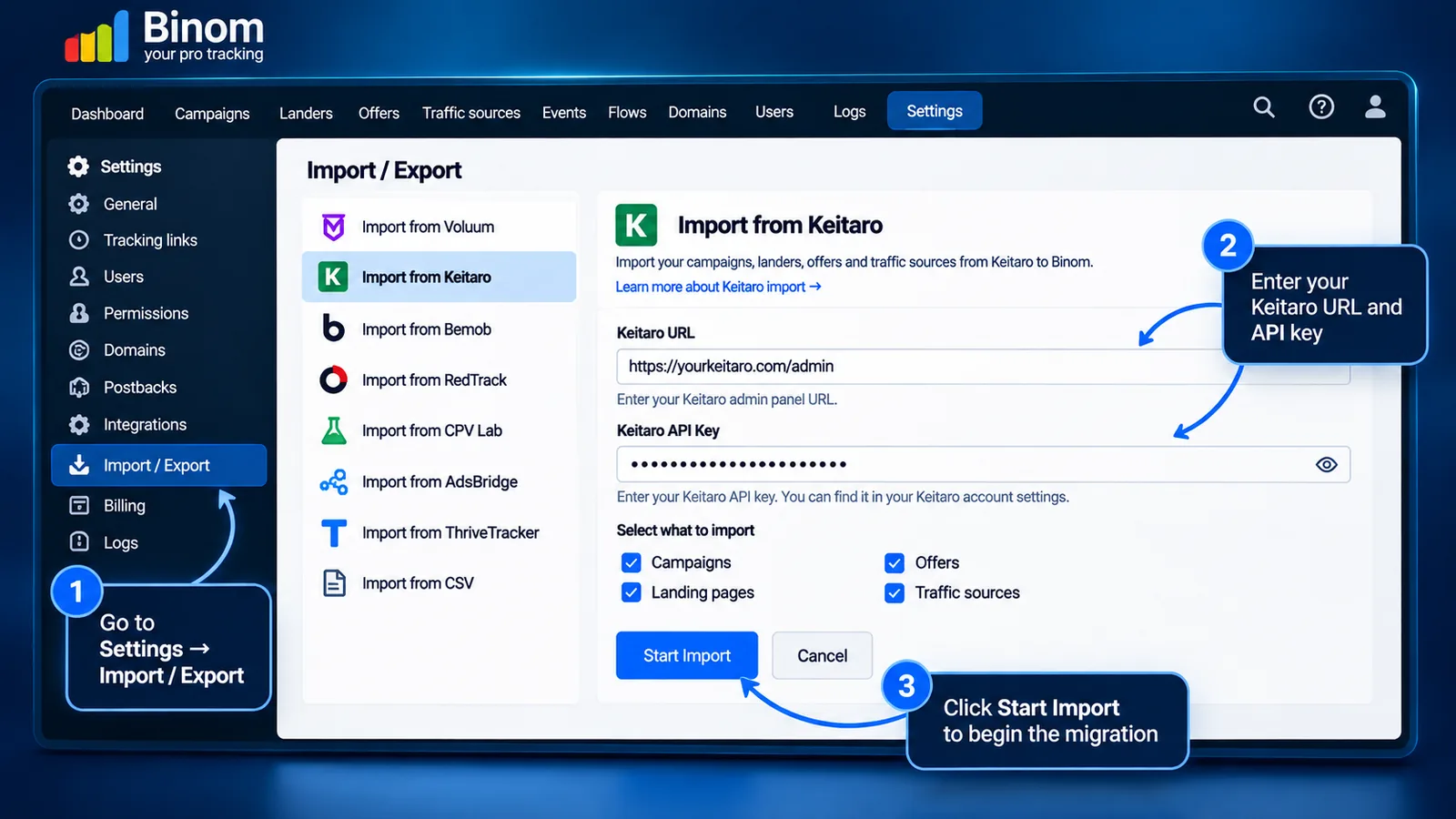
Log in to Binom and navigate to Settings → Import/Export → Keitaro.
Step 2: Connect your Keitaro account
Enter your Keitaro admin login page address in the Keitaro URL field, typically https://yourdomain.com/admin. Then paste your API key into the Keitaro API Key field.
Step 3: Start the import
Run the import through Binom's interface. The tool supports transferring campaigns, traffic sources, affiliate networks, offers, landing pages, domains, users, and custom rotations.
Step 4: Review the imported configurations
Once the process finishes, check that your campaigns and their associated elements appear in Binom. Keitaro flows are converted into Binom rules and paths, so review their structure rather than assuming every setting has transferred identically.
The import establishes your campaign configurations, but several details need attention before you can safely switch live traffic.
4. What Transfers Automatically, and What Needs Attention?
Binom transfers the core elements of your Keitaro setup, but some settings are converted, modified, or omitted during migration.
| Component | What to Expect |
|---|---|
| Campaigns | Names, domains, traffic sources, costs, and flows transfer. Some settings are omitted. |
| Traffic sources | Names, tracking parameters, and traffic-source S2S postback settings transfer, although certain parameters may be rearranged. |
| Offers | Core details transfer, but some offer types are converted, and only the first country is retained. |
| Landing pages | Supported pages transfer, but certain types are converted and tracking tokens may need updating. |
| Flows and rotations | Keitaro flows become Binom rules and paths. Some routing configurations require review. |
| Domains | Domain names transfer, but additional domain settings do not. |
Pay particular attention to currency settings. Unsupported currencies are changed to USD without recalculating their numerical values. For example, a payout of 100 in an unsupported currency could become 100 USD, requiring manual correction.
Campaign-specific S2S postback settings also require attention. Their values are preserved in campaign notes rather than imported into the original postback field.
These differences make post-import verification essential, especially for campaigns involving multiple offers, routing rules, or conversion events.
5. Five Checks Before Sending Live Traffic
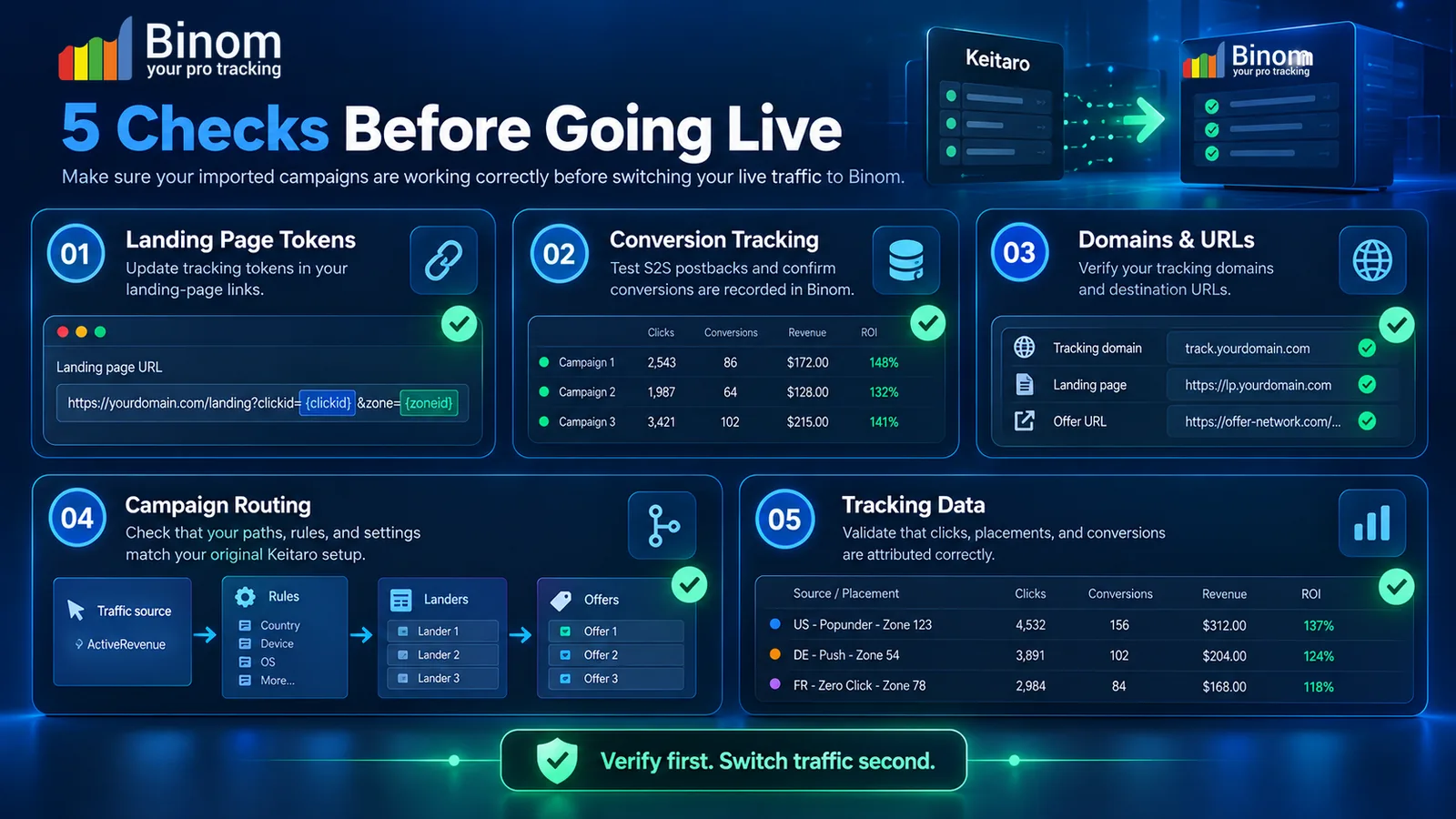
Once your campaigns are imported, test the new setup before redirecting production traffic to Binom.
Check landing-page tokens. Keitaro and Binom use different token names. For example, Keitaro's {offer} becomes {offer_link} in Binom. Update affected landing-page links.
Verify conversion tracking. Review affiliate network postbacks and restore any campaign-specific S2S settings that weren't imported into their original fields. Run a test conversion to confirm attribution works.
Review domains and URLs. Confirm that your tracking domains, HTTPS settings, and campaign destination URLs are configured correctly.
Test campaign routing. Check that imported rules, paths, and offer rotations direct visitors to the intended destinations.
Validate your tracking data. Send controlled test traffic and confirm that clicks, conversions, and traffic-source parameters appear correctly in Binom's reports.
Ready to Track with Binom?
A successful migration depends on more than transferring campaign settings. Preparing your configurations, reviewing import limitations, and testing conversion tracking will help you avoid disruptions when switching platforms.
Explore Binom to learn more about its tracking platform and Keitaro import capabilities.
Once your tracking setup is ready, the next step is putting it to work with reliable traffic. ActiveRevenue is a self-serve advertising platform connecting over 15,000 affiliates with worldwide traffic through formats including Popunder and Zero-Click. Whether you're testing new placements or scaling proven campaigns, you can register with ActiveRevenue and use Binom's tracking capabilities to measure conversions and optimize your traffic sources.